Coding with Jesse

Why I love Mastodon

I quit Twitter at the end of 2020, and haven't really used social media at all since then. So when I heard in the news that others were ditching Twitter for Mastodon, I got really excited!

I signed up for Mastodon back in May 2019 and, at the time, I wrote on there: "I just heard about Mastodon a few days ago. I keep spelling it Mastadon. It's a really cool platform and architecture, and I would love to see it completely replace Twitter one day. Do you think it could?"

It seems like that time has come. Not everybody has moved from Twitter to Mastodon, but a large number of developers have, and that's what matters most to me.

A wild month

In 14 years of using Twitter, I never went viral. The closest I came was when I published my blog post Svelte is the most beautiful web framework I've ever seen. The tweet linking to that post received 40 retweets, which had my head spinning at the time.

Well, in the past month, I've had three toots that were more successful than that. And one of those went absolutely viral! I was excited about Mastodon and hoping all these new migrants would stay, so I wrote "Boost this toot if you're planning on sticking around Mastodon whether or not it becomes more popular than the birdsite.", and so far I've received 217 replies, 3,254 favourites and 5,765 boosts!

I also tooted a list of web developers worth following and that received 77 favourites and 52 boosts.

I'm not trying to brag, I just want to demonstrate that the reach and discovery on Mastodon is so much greater than Twitter. Part of that is that there is no algorithm on Mastodon, part of it is that people can browse "local" or "federated" feeds to find new posts from people they don't follow, so it's much easier for new users to reach a lot more people. I also find that the quality of interactions is higher, and the conversations more intelligent and engaging.

As another example, I tried putting a poll on Mastodon and Twitter at the same time. I had 7 people answer the Twitter poll, but 43 on Mastodon! This and other experiments I've done have cemented for me just how much more easily I can reach and connect with other like-minded people on Mastodon.

Whatever it is, I've definitely experienced a lot more joy interacting on this platform. It's wonderful that there are no ads, there's no company profiting off our use of the platform, and we can own our own content. It's not a new company trying to launch a startup to replace Twitter, it's a platform built on an open web standard that will surely be around for a very long time!

What is the platform?

As a web developer, I was excited to learn that Mastodon is actually built upon ActivityPub, a web standard produced by the W3C, the standards body behind other technologies you may have heard of, like HTML and CSS.

ActivityPub is similar to RSS but with pushing content instead of polling a feed. It allows web sites to publish content, and have other web sites subscribe to that content. When a new post is available, the content is pushed to each of the subscribers so that they immediately find out about it.

The world of systems that work with ActivityPub is referred to as the Fediverse. Mastodon is a Twitter-like interface built upon this platform. There is also Pixelfed, an Instagram-like platform, and PeerTube, a YouTube-like platform. Anybody can create new platforms that integrate with the rest of the Fediverse, just by implementing the ActivityPub protocol. There is even a WordPress ActivityPub plugin so that any WordPress blog can be followed by others on the Fediverse.

Mastodon Servers

If you've heard anything about Mastodon, you've heard about how you have to choose a server. This is a weird step for many people, at least compared to large corporate centralised social media, but it's what we already have to do for things like e-mail (though most people choose gmail.com). There is no central Mastodon server, so you need to choose one to get started. But the great thing is, you can move to a different server, and anyone who follows you will automatically follow your new account (though you can't move your posts). You can even run your own server!

One easy strategy is just to pick any server that is currently accepting new accounts, and then accept that you may well decide to move elsewhere once you get a feel for things and settle in and discover a server that resonates better with you.

You can go to the Mastodon website or instances.social to browse servers. You could choose one that is somewhat relevant to your interests or location, or you could choose one that is totally generic. Or just choose one that has a name that you like. Like email, it will be part of your address.

Some development-related servers include hachyderm.io, fosstodon.org, indieweb.social, front-end.social, and toot.cafe, though the last two are closed for registrations at the time of writing this.

Back in 2019, I started off on toot.cafe, but decided the next day that I'd rather be on a bigger, more popular server, so I moved to mastodon.social. But earlier this month when I started using Mastodon heavily, I actually decided I'd rather be on a smaller server focused on web dev, so that I would have a "local" feed more useful and interesting to me, so I moved back to toot.cafe!

Migrating to Mastodon from Twitter

If you were already active on Twitter, you'll be glad to know there are tools to help you migrate. I highly recommend you check out Movetodon, where you can log in with both your Twitter and Mastodon accounts, and you can search for and automatically follow people. Of the 1025 people I follow on Twitter, I can find 164 of them on Mastodon, and more are moving over every day.

If you do decide to move over, be sure to put your new Mastodon address in your Twitter bio, so others can find you using automated tools as well.

I really hope this migration sticks, and so I think the best thing we can do support it is to participate as heavily as we can on there, to follow interesting people, to boost interesting posts, and to be active and contribute to the conversation so that others enjoy it there and stick with it too.

Follow me!

If you'd like to follow me, you can sign up for Mastodon (or another Fediverse server) and follow me at https://toot.cafe/@JesseSkinner. I hope to see you there!

Published on November 27th, 2022. © Jesse Skinner

How I use GitHub Copilot to be more productive

GitHub Copilot is a VS Code extension that brings machine learning into your development environment. It will upload snippets of your code to Microsoft's servers, and send back a list of suggestions of what it predicts will come next.

Some people have wondered whether our jobs as developers are doomed, now that machine learning can write code for us. Will computers be able to write all the code in the future without needing developers involved? I really don't think this will happen, but I do think our jobs will get a bit easier with help from tools like Copilot.

"Copilot" is a really good name for the tool, because although it won't write all your code for you anytime soon, it makes very helpful suggestions most of the time. Often, you'll have to make some tweaks to the suggestion to get it working correctly. You're still the pilot here, but Copilot is sitting beside you actively trying to make your life easier.

When I started using Copilot, I thought it was super creepy. I could write comments and Copilot would suggest code that does what the comment says. I'd never seen anything like this before. I also had mixed feelings about using code that seemed like it might be plagiarised directly from some GitHub project.

Three months later, it has become fully integrated into my development workflow. When I'm coding somewhere without Internet access, I'll find myself briefly pausing to see what Copilot suggests, only to realise that I'm on my own.

Generally, I write code the way I used to before, and GitHub Copilot will suggest just a few lines of code for me at a time. Much of the time, the suggestion is almost exactly what I would have typed anyway.

Even though I've been coding professionally for decades, Copilot has made me even more productive. Here are a few ways that Copilot has changed the way I work.

Don't repeat yourself, let Copilot do it for you

Probably the most reliable use of Copilot is to set up some kind of pattern and allow Copilot to repeat the pattern for you.

For example, I never have to type out something like a list of months. I can just write a descriptive variable name, and Copilot will suggest an array for me:

const MONTHS = // ['January', 'February', 'March', 'April', 'May', 'June', 'July', 'August', 'September', 'October', 'November', 'December'];

If you want a different format of month, you just give it an example and Copilot will suggest the rest:

const MONTHS = ['Jan.', // 'Feb.', 'Mar.', 'Apr.', 'May', 'Jun.', 'Jul.', 'Aug.', 'Sep.', 'Oct.', 'Nov.', 'Dec.'];

Notice how "May" doesn't even have a period after it? Copilot is surprisingly good at this sort of autocomplete.

In other cases, where your code has a repetitive nature to it, but you maybe don't want to over-complicate things by writing a loop, Copilot can save you the hassle. For example, if you're creating an object with property names, and the values use the name in some kind of pattern, give an initial example, Copilot will do the rest for you:

return {
    age: model.getAge(),
    address: // model.getAddress(),

With this sort of pattern, I go one at a time, pausing briefly after each property name and hitting TAB to autocomplete once Copilot figures it out. It saves me some typing and the inevitable typos too.

It finishes my sentences

VS Code is already quite good at using Intellisense to make useful suggestions, or to close parentheses and brackets for me. Copilot takes that to the next level, and often suggests the whole rest of the line for me. Sometimes it's wrong, but often it's exactly right.

For example, if I'm writing some filter statement, Copilot will make a good guess as to how the rest of it will look:

const activeItems = items.filter( // item => item.active);

Good guess! But if that's not how I named my variable, I might keep typing to give it more context:

const activeItems = items.filter(item => item.status // === 'active');

The more context Copilot has, the more likely it will guess correctly. At some point, Copilot generally figures out exactly what I was about to type, and when it does I can just hit TAB and move on to the next line. It's trying to read my mind, and when it gets it right, that means fewer keystrokes and probably fewer typos too.

Even if it only ends up suggesting a couple closing parentheses and a semicolon, I'm happy for the help.

Naming things is easier

Phil Karlton famously said that the two hardest problems in computer science are cache invalidation and naming things. Copilot makes at least one of these a bit easier.

You saw in the previous example, that when I was filtering on an array of items, Copilot suggested item as the argument in the filter function. This is a simple example of where Copilot gets things right almost every time.

Usually I'm not too picky about function or variable names, so if Copilot comes up with something half-decent, I'll go with it. I also think that it's probably well informed by what many others have chosen before, and I think familiar variable names are probably better names anyway.

For example, if I'm about to write a SQL query, Copilot will make up the table and column names for me as good or better than I will:

async function addBook(params) {
    await query( // `INSERT INTO books (title, author, isbn, description, image, price, stock) VALUES ('${params.title}', '${params.author}', '${params.isbn}', '${params.description}', '${params.image}', '${params.price}', '${params.stock}')`);

Wow, it did that with no context other than "book". Obviously there must be a bunch of open source code or demos that work with books in a database. Those might not be the names I end up choosing, and I probably won't need that exact list of columns, but often they'll be pretty good, and might make me think of something I'd otherwise miss. More than once, Copilot has suggested better names than I had planned on using.

But notice that there's something really dangerous in this suggestion! The values are being inserted into the database without being escaped! This is a security flaw, and a major reason why you still need to be careful and knowledgeable about the code that Copilot is suggesting. It won't always be secure, or even good. You still need to be the pilot here. Same goes with any code you find online.

I don't need Stack Overflow as often

Speaking of finding code online, I rarely have to actively go out and search on Stack Overflow or GitHub anymore. If I'm not sure how to do something, I'll use a descriptive function name or write a comment that describes what I'm trying to do. Most of the time, Copilot will make a useful suggestion. More than once, I've learned something new from the suggested code.

function getRandomNumber(min, max) {
    // return Math.floor(Math.random() * (max - min + 1)) + min;

I think of Copilot as searching through publicly available source code for me, to find examples where someone else has done the exact same thing before. I really don't want to accidentally plagiarise a large block of code from GitHub without knowing where it came from. But I will let Copilot suggest a line or two of code for me, that does something a bit tricky but fundamental, where the code would have been essentially identical had I worked it out on my own.

It knows how I intended to use that new variable

When I'm writing a function and declare a variable, Copilot will often have a good idea about how I intended to use that variable. Often, the suggestion here will be bang on.

function processItems(items) {
    const activeItems = 0;

    for (const item of items) {
        // if (item.active) {
        //     activeItems++;
        // }

Sometimes, I'll forget about a variable I'd declared earlier, so Copilot's suggestion ends up being a friendly reminder to use the variable. Even if the suggestion is wrong, the reminder ends up being useful.

Test-driven Copilot Development

The most surprising thing that Copilot has done, was suggest for me all the code I needed to make my tests pass, even though the tests were in a different file! I didn't know Copilot was capable of this, so it was a big surprise when it happened.

Let's say this was your test file, model.test.js:

import Model from './model.js';
import { deepEqual } from 'assert';

it('should return an empty array by default', () => {
    const model = new Model();

    deepEqual(model.get(), []);
});

it('should double the numbers provided', () => {
    const model = new Model();

    model.add(7);

    deepEqual(model.get(), [14]);
});

Open up a blank new file model.js, type export default and Copilot will automatically suggest the rest:

export default // class Model {
    // constructor() {
    //    this.data = [];
    // }

    // get() {
    //    return this.data;
    // }

    // add(number) {
    //     this.data.push(number * 2);
    // }
// }

Tests pass without writing any code! This brings Test-Driven Development to a whole new level, where you can focus on writing good tests, and Copilot will write the code that passes the tests! It doesn't always work this well, but when it does, you can't help but giggle in delight.

Conclusion

When I first tried Copilot, I thought it was super creepy. Now, I see Copilot as my delightful junior assistant, the two of us collaborating on writing code. The more predictable you can be, by using descriptive function names and variables, the more likely Copilot will correctly predict what you're trying to do.

As I write this, Copilot is still in Technical Preview, and so you have to apply to be on the wait list. I only had to wait a day when I applied, but you may have to wait longer or might not be approved at all. One day, Copilot will likely cost money to use. I think I'll probably be willing to pay for it, because it does save me time and energy, ultimately making my services more valuable.

I hope you get a chance to try out Copilot for yourself. It's fun to use, and can even make you a more productive programmer too.

Published on March 1st, 2022. © Jesse Skinner

Introduction to WebGL and shaders

I recently worked on a project where I needed to use WebGL. I was trying to render many thousands of polygons on a map in the browser, but GeoJSON turned out to be way too slow. To speed things up, I wanted to get down to the lowest level possible, and actually write code that would run directly on the GPU, using WebGL and shaders. I'd always wanted to learn about shaders, but never had the chance, so this was a great opportunity to learn something new while solving a very specific technical challenge.

At first, it was quite the struggle to figure out what I needed to do. Copying and pasting example code often didn't work, and I didn't really get how to go from the examples to the custom solution I needed. However, once I fully understood how it all fit together, it suddenly clicked in my head, and the solution turned out to be surprisingly easy. The hardest part was wrapping my head around some of the concepts. So, I wanted to write up an article explaining what I'd learned, to help you understand those concepts, and hopefully make it easier for you to write your first shader.

In this article, we'll look at how to render an image to the page with over 150 lines of code! Silly, I know, considering we can just use an <img> tag and be done with it. But doing this is a good exercise because it forces us to introduce a lot of important WebGL concepts.

Here's what we'll do in this article:

  1. We'll write two shader programs, to tell the GPU how to turn a list of coordinates into coloured triangles on the screen.

  2. We'll pass the shaders a list of coordinates to tell it where to draw the triangles the screen.

  3. We'll create an "image texture", uploading an image into the GPU so it can paint it onto the triangles.

  4. We'll give the shader a different list of coordinates so it knows which image pixels go inside each triangle.

Hopefully you can use these concepts as a starting point to doing something really cool and useful with WebGL.

Even if you end up using a library to help you with your WebGL code, I find understanding the raw API calls behind the scenes to be useful to know what is actually going on, especially if things go wrong.

Getting started with WebGL

To use WebGL in the browser, you'll need to add a <canvas> tag to the page. With a canvas, you can either draw using the 2D Canvas API, or you can choose to use the 3D WebGL API, either version 1 or 2. (I don't actually understand the difference between WebGL 1 and 2, but I'd like to learn more about that some day. The code and concepts I'll discuss here apply to both versions though.)

If you want your canvas to fill the viewport, you can start with this simple HTML:

<!doctype html>
<html lang="en">
    <meta charset="UTF-8">
    <title>WebGL</title>
    <style>
        html, body, canvas {
            width: 100%;
            height: 100%;
            border: 0;
            padding: 0;
            margin: 0;
            position: absolute;
        }
    </style>
    <body>
        <canvas></canvas>
        <script></script>
    </body>
</html>

That will give you a blank, white, useless page. You'll need some JavaScript to bring it to life. Inside the <script> tag, add these lines to get access to the WebGL API for the canvas:

const canvas = document.querySelector('canvas');
const gl = canvas.getContext('webgl');

Writing your first WebGL shader program

WebGL is based on OpenGL, and uses the same shader language. That's right, shader programs are written in a language of their own, GLSL, which stands for Graphics Library Shader Language.

GLSL reminds me of C or JavaScript, but it has its own quirks and is very limited but also very powerful. The cool thing about it is, it runs right on the GPU instead of in a CPU. So it can do things very quickly that normal CPU programs can't do. It's optimized for dealing with math operations using vectors and matrices. If you remember your matrix math from algebra class, good for you! If you don't, that's ok! You won't need it for this article anyway.

There are two types of shaders we'll need: vertex shaders and fragment shaders. Vertex shaders can do calculations to figure out where each vertex (corner of a triangle) goes. Fragment shaders figure out how to color each fragment (pixel) inside a triangle.

These two shaders are similar, but do different things at different times. The vertex shader runs first, to figure out where each triangle goes, and then it can pass some information along to the fragment shader, so the fragment shader can figure out how to paint each triangle.

Hello, world of vertex shaders!

Here's a basic vertex shader that will take in a vector with an x,y coordinate. A vector is basically just an array with a fixed length. A vec2 is an array with 2 numbers, and a vec4 is an array with 4 numbers. So, this program will take a global "attribute" variable, a vec2 called "points" (which is a name I made up).

It will then tell the GPU that that's exactly where the vertex will go by assigning it to another global variable built into GLSL called gl_Position.

It will run for each pair of coordinates, for each corner of each triangle, and points will have a different x,y value each time. You'll see how we define and pass those coordinates later on.

Here's our first "Hello, world!" vertex shader program:

attribute vec2 points;

void main(void) {
    gl_Position = vec4(points, 0.0, 1.0);
}

No calculation was involved here, except we needed to turn the vec2 into a vec4. The first two numbers are x and y, the third is z, which we'll just set to 0.0 because we're drawing a 2-dimensional picture and we don't need to worry about the third dimension. (I don't know what the fourth value is, but we just set it to 1.0. From what I've read, I think it has something to do with making matrix math easier.)

I like that in GLSL, vectors are a basic data type, and you can easily create vectors using other vectors. We could have written the line above like this:

gl_Position = vec4(points[0], points[1], 0.0, 1.0);

but instead, we were able to use a shortcut and just pass the vec2 points in as a the first argument, and GLSL figured out what to do. It reminds me of using the spread operator in JavaScript:

// javascript
gl_Position = [...points, 0.0, 1.0];

So if one of our triangle corners had an x of 0.2 and a y of 0.3, our code would effectively be doing this:

gl_Position = vec4(0.2, 0.3, 0.0, 1.0);

but we can't just hardcode the x and y coordinates into our program like this, or all the triangles would just be a single point on the screen. We use the attribute vector instead so that each corner (or vertex) can be in a different place.

Colouring our triangles with a fragment shader

While vertex shaders run once for each corner of each triangle, fragment shaders run once for each coloured pixel inside each triangle.

Whereas vertex shaders define the position of each vertex using a global vec4 variable called gl_Position, fragment shaders work by defining the colour of each pixel with a different global vec4 variable called gl_FragColor. Here's how we can fill all our triangles with red pixels:

void main() {
    gl_FragColor = vec4(1.0, 0.0, 0.0, 1.0);
}

The vector for a colour here is RGBA, so a number between 0 and 1 for each of red, green, blue and alpha. So the example above just sets each fragment or pixel to bright red with full opacity.

Accessing an image inside your shaders

You wouldn't normally fill all your triangles with the same solid colour, so instead, we want the fragment shader to reference an image (or "texture") and pull out the right colour for each pixel inside our triangles.

We need to access both the texture with the color information, as well as some "texture coordinates" that tell us how the image maps onto the shapes.

First, we'll modify the vertex shader to access the coordinates and pass them on to the fragment shader:

attribute vec2 points;
attribute vec2 texture_coordinate;

varying highp vec2 v_texture_coordinate;

void main(void) {
    gl_Position = vec4(points, 0.0, 1.0);
    v_texture_coordinate = texture_coordinate;
}

If you're like me, you're probably worried there will be all sorts of crazy trigonometry needed, but don't worry - it turns out to be the easiest part, thanks to the magic of the GPU.

We take in a single texture coordinate for each vertex, but then we pass it on to the fragment shader in a varying variable, which will "interpolate" the coordinates for each fragment or pixel. This is essentially a percentage along both dimensions, so that for any particular pixel inside the triangle, we'll know exactly which pixel of the image to choose.

The image is stored in a 2-dimensional sampler variable called sampler. We receive the varying texture coordinate from the vertex shader, and use a GLSL function called texture2D to sample the appropriate single pixel from our texture.

It sounds complex but turns out to be super easy thanks to the magic of the GPU. The only part where we need to do any math is associating each vertex coordinate of our triangles with the coordinates of our image, and we'll see later that it turns out to be pretty easy.

precision highp float;
varying highp vec2 v_texture_coordinate;
uniform sampler2D sampler;

void main() {
    gl_FragColor = texture2D(sampler, v_texture_coordinate);
}

Compiling a program with two shaders

We've just looked at how to write two different shaders using GLSL, but we haven't talked about how you would even do that within JavaScript. You simply need to get these GLSL shaders into JavaScript strings, and then we can use the WebGL API to compile them and put them on the GPU.

Some people like to put shader source code directly in the HTML using script tags like <script type="x-shader/x-vertex">, and then pull out the code using innerText. You could also put the shaders into separate text files and load them with fetch. Whatever works for you.

I find it easiest to just write the shader source code directly in my JavaScript with template strings. Here's what that looks like:

const vertexShaderSource = `
    attribute vec2 points;
    attribute vec2 texture_coordinate;

    varying highp vec2 v_texture_coordinate;

    void main(void) {
        gl_Position = vec4(points, 0.0, 1.0);
        v_texture_coordinate = texture_coordinate;
    }
`;

const fragmentShaderSource = `
    precision highp float;
    varying highp vec2 v_texture_coordinate;
    uniform sampler2D sampler;

    void main() {
        gl_FragColor = texture2D(sampler, v_texture_coordinate);
    }
`;

Next, we need to create a GL "program" and add those two different shaders to it like this:

// create a program (which we'll access later)
const program = gl.createProgram();

// create a new vertex shader and a fragment shader
const vertexShader = gl.createShader(gl.VERTEX_SHADER);
const fragmentShader = gl.createShader(gl.FRAGMENT_SHADER);

// specify the source code for the shaders using those strings
gl.shaderSource(vertexShader, vertexShaderSource);
gl.shaderSource(fragmentShader, fragmentShaderSource);

// compile the shaders
gl.compileShader(vertexShader);
gl.compileShader(fragmentShader);

// attach the two shaders to the program
gl.attachShader(program, vertexShader);
gl.attachShader(program, fragmentShader);

Lastly, we have to tell GL to link and use the program we just created. Note, you can only use one program at a time:

gl.linkProgram(program);
gl.useProgram(program);

If something went wrong with our program, we should log the error to the console. Otherwise, it will silently fail:

if (!gl.getProgramParameter(program, gl.LINK_STATUS)) {
    console.error(gl.getProgramInfoLog(program));
}

As you can see, the WebGL API is very verbose. But if you look through these lines carefully, you'll see they're not doing anything too surprising. These chunks of code are perfect for copying and pasting, because it's hard to memorize them and they rarely change. The only part you might need to change is the shader source code in the template strings.

Drawing triangles

Now that we have our program all wired up, it's time to feed it some coordinates and get it to draw some triangles on the screen!

First, we need to understand the default coordinate system for WebGL. It's quite different from your regular pixel coordinate system on the screen. In WebGL, the center of the canvas is 0,0, top-left is -1,-1, and bottom right is 1,1.

If we want to render a photograph, we need to have a rectangle. But WebGL only knows how to draw triangles. So how do we draw a rectangle using triangles? We can use two triangles to create a rectangle. We'll have one triangle cover the top left corner, and another in the bottom right, like this:
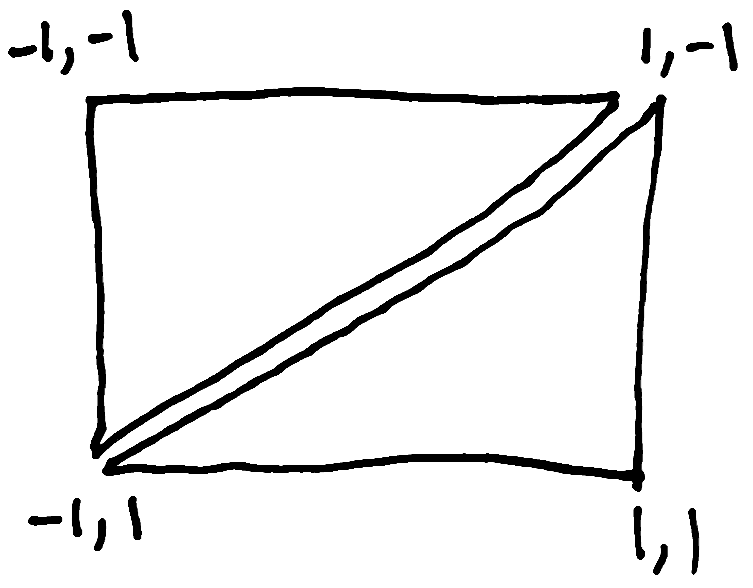
WebGL coordinate system

To draw triangles, we'll need to specify where the coordinates of the three corners of each triangle are. Let's create an array of numbers. Both the x & y coordinates of both triangles will all be in a single array, like this:

const points = [
    // first triangle
    // top left
    -1, -1,

    // top right
    1, -1,

    // bottom left
    -1, 1,

    // second triangle
    // bottom right
    1, 1,

    // top right
    1, -1,

    // bottom left
    -1, 1,
];

To pass a list of numbers into our shader program, we have to create a "buffer", then load an array into the buffer, then tell WebGL to use the data from the buffer for the attribute in our shader program.

We can't just load a JavaScript array into the GPU, it has to be strictly typed. So we wrap it in a Float32Array. We could also use integers or whatever type makes sense for our data, but for coordinates, floats make the most sense.

// create a buffer
const pointsBuffer = gl.createBuffer();

// activate the buffer, and specify that it contains an array
gl.bindBuffer(gl.ARRAY_BUFFER, pointsBuffer);

// upload the points array to the active buffer
// gl.STATIC_DRAW tells the GPU this data won't change
gl.bufferData(gl.ARRAY_BUFFER, new Float32Array(points), gl.STATIC_DRAW);

Remember, I made an attribute called "points" at the top of our shader program, with the line attribute vec2 points;? Now that our data is in the buffer, and the buffer is active, we can fill that "points" attribute with the coordinates we need:

// get the location of our "points" attribute in our shader program
const pointsLocation = gl.getAttribLocation(program, 'points');

// pull out pairs of float numbers from the active buffer
// each pair is a vertex that will be available in our vertex shader
gl.vertexAttribPointer(pointsLocation, 2, gl.FLOAT, false, 0, 0);

// enable the attribute in the program
gl.enableVertexAttribArray(pointsLocation);

Loading an image into a texture

In WebGL, textures are a way to provide a bunch of data in a grid that can be used to paint pixels onto shapes. Images are an obvious example, they are a grid of red, blue, green & alpha values along rows and columns. But, you can use textures for things that aren't images at all. Like all information in a computer, it ends up being nothing other than lists of numbers.

Since we're in the browser, we can use regular JavaScript code to load an image. Once the image has loaded, we'll use it to fill the texture.

It's probably easiest to load the image first before we do any WebGL code, and then run the whole WebGL initialization stuff after the image has loaded, so we don't need to wait on anything, like this:

const img = new Image();
img.src = 'photo.jpg';
img.onload = () => {
    // assume this runs all the code we've been writing so far
    initializeWebGLStuff();
};

Now that our image has loaded, we can create a texture and upload the image data into it.

// create a new texture
const texture = gl.createTexture();

// specify that our texture is 2-dimensional
gl.bindTexture(gl.TEXTURE_2D, texture);

// upload the 2D image (img) and specify that it contains RGBA data
gl.texImage2D(gl.TEXTURE_2D, 0, gl.RGBA, gl.RGBA, gl.UNSIGNED_BYTE, img);

Since our image is probably not a square with power-of-two dimensions, we also have to tell WebGL how to choose which pixels to draw when enlarging or shrinking our image, otherwise it will throw an error.

// tell WebGL how to choose pixels when drawing our non-square image
gl.texParameteri(gl.TEXTURE_2D, gl.TEXTURE_WRAP_S, gl.CLAMP_TO_EDGE);
gl.texParameteri(gl.TEXTURE_2D, gl.TEXTURE_WRAP_T, gl.CLAMP_TO_EDGE);
gl.texParameteri(gl.TEXTURE_2D, gl.TEXTURE_MIN_FILTER, gl.LINEAR);

// bind this texture to texture #0
gl.activeTexture(gl.TEXTURE0);
gl.bindTexture(gl.TEXTURE_2D, texture);

Lastly, we want to access this texture in our shader program. We defined a 2-dimensional uniform sampler variable with the line uniform sampler2D sampler;, so let's tell the GPU that our new texture should be used for that.

// use the texture for the uniform in our program called "sampler",
gl.uniform1i(gl.getUniformLocation(program, 'sampler'), 0);

Painting triangles with an image using texture coordinates

We're almost done! The next step is very important. We need to tell our shaders how and where our image should be painted onto our triangles. We want the top left corner of our image to be painted in the top left corner of our top left triangle. And so on.

Image textures have a different coordinate system than our triangles used, so we have to think a little bit about this, and can't just use the exactly same coordinates unfortunately. Here's how they differ:
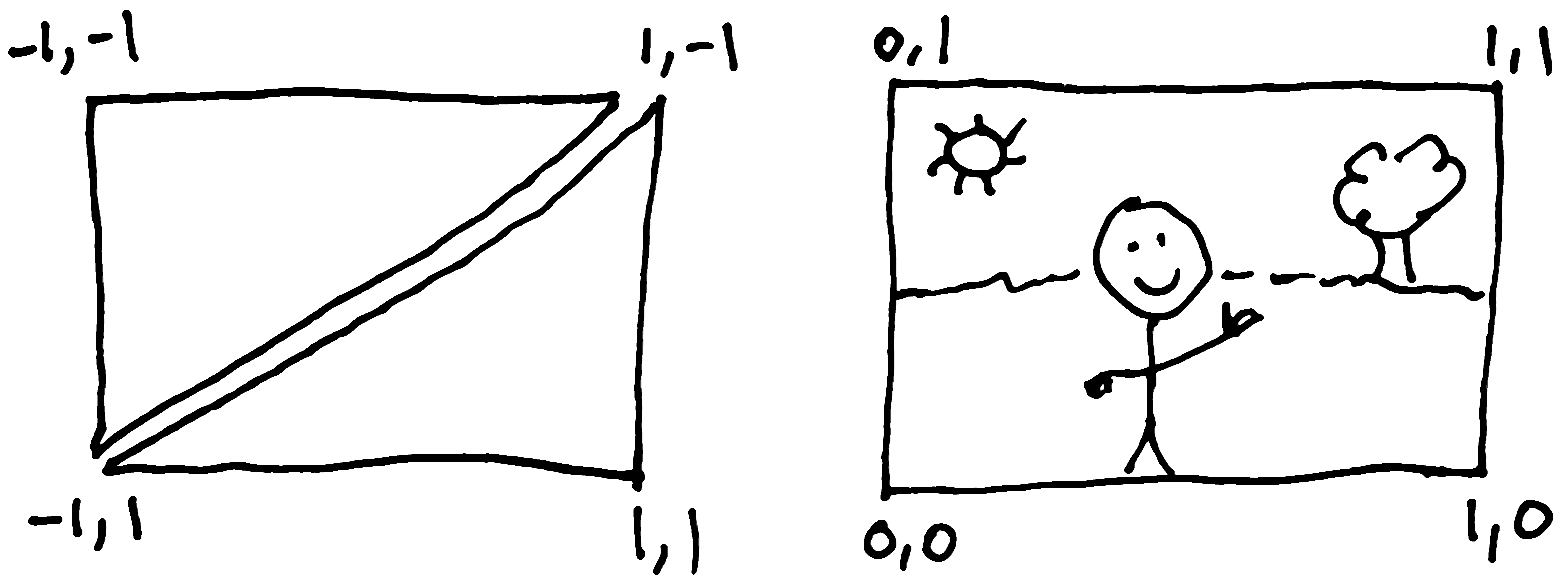
Comparing WebGL coordinates with texture coordinates

The texture coordinates should be in the exact same order as our triangle vertex coordinates, because that's how they will show up together in the vertex shader. As our vertex shader runs for each vertex, it will also be able to access each texture coordinate, and pass that along to the fragment shader as a varying variable.

We'll use almost the same code we used to upload our array of triangle coordinates, except now we'll be associating it with the attribute called "texture_coordinate".

const textureCoordinates = [
    // first triangle
    // top left
    0, 1,

    // top right
    1, 1,

    // bottom left
    0, 0,

    // second triangle
    // bottom right
    1, 0,

    // top right
    1, 1,

    // bottom left
    0, 0,
];

// same stuff we did earlier, but passing different numbers
const textureCoordinateBuffer = gl.createBuffer();
gl.bindBuffer(gl.ARRAY_BUFFER, textureCoordinateBuffer);
gl.bufferData(gl.ARRAY_BUFFER, new Float32Array(textureCoordinates), gl.STATIC_DRAW);

// and associating it with a different attribute
const textureCoordinateLocation = gl.getAttribLocation(program, 'texture_coordinate');
gl.vertexAttribPointer(textureCoordinateLocation, 2, gl.FLOAT, false, 0, 0);
gl.enableVertexAttribArray(textureCoordinateLocation);

Last step, draw some triangles

Now that we have our shaders and all our coordinates and our image loaded in the GPU, we're ready to actually run our shader program and have it draw our image onto the canvas.

To do that, we just need one line of code:

gl.drawArrays(gl.TRIANGLES, 0, 6);

This tells WebGL to draw triangles using both our points array and the texture coordinates array. The number 6 here means that every 6 numbers in our arrays defines one triangle. Each triangle has 3 corners with an x and y coordinate associated with each corner (or vertex).

See the code live on CodePen.io

Just the beginning?

Isn't it amazing how many different things you need to learn to draw an image using the GPU? I found it to be a huge learning curve, but once I wrapped my head around what shaders actually do, what textures are, and how to provide shaders with some lists of numbers, and how it all fits together, it started to make sense and I realised how powerful it all is.

I hope you've been able to get a glimpse of some of that simplicity and power. I know the WebGL API can be very painfully verbose, and I'm still not totally sure what every function does exactly, and It's definitely a new programming paradigm for me, because a GPU is so different from a CPU, but that's what makes it so exciting.

Published on September 15th, 2021. © Jesse Skinner

MySQL: Using a password on the command line interface can be insecure

If you've ever tried to use the MySQL command line tool in some automated bash scripts or cron jobs, you'll probably wonder how to pass your password to MySQL without having to type it in. The most obvious choice would be to use the -p or --password command line arguments. If you've ever tried that, you'll probably have seen this warning message:

mysql: [Warning] Using a password on the command line interface can be insecure.

This is because any other users or programs running on that computer will have the opportunity to see the password, because process command line arguments are publicly available on Linux for some reason.

Today I learned a better way to do this. Actually I learned two ways from this Stack Overflow question:

  1. You can use a configuration file, either in ~/.my.cnf or in a file specified with the --defaults-file command line argument, or
  2. You can use the MYSQL_PWD environment variable.

For me, #2 was the easiest solution, even though it's not the most secure option to use generally. MySQL documentation warns:

This method of specifying your MySQL password must be considered extremely insecure and should not be used. Some versions of ps include an option to display the environment of running processes. On some systems, if you set MYSQL_PWD, your password is exposed to any other user who runs ps. Even on systems without such a version of ps, it is unwise to assume that there are no other methods by which users can examine process environments.

If this sounds scary, go with the configuration file approach. I'm not worried about environment variables on my servers, and this other Stack Overflow thread, Is passing sensitive data through the process environment secure?, explains that this used to be a big concern, but nowadays the MySQL documentation warning is a bit over-the-top. These days, on most Linux systems, environment variables are a safe way to pass around secrets.

Since I was already using environment variables to store my database credentials, I decided to just change my bash script from this:

#!/bin/bash

mysql -h "$MYSQL_HOSTNAME" -u "$MYSQL_USERNAME" "$MYSQL_DATABASE" --password="$MYSQL_PASSWORD" "$@"

to this:

#!/bin/bash

MYSQL_PWD="$MYSQL_PASSWORD" mysql -h "$MYSQL_HOSTNAME" -u "$MYSQL_USERNAME" "$MYSQL_DATABASE" "$@"

Sure, I could've renamed my environment variable from MYSQL_PASSWORD to MYSQL_PWD, but I have other code relying on that, so this was the easiest way to eliminate that warning.

Published on April 7th, 2021. © Jesse Skinner

Why I quit Twitter

Update November 2022: Why I love Mastodon. Follow me at https://toot.cafe/@JesseSkinner

I used to love Twitter. When I signed up in 2008, it was a new place to publicly talk with people from around the world. Over time, more people joined, and it became a great place to hear the latest news and gossip in the web development community. I enjoyed seeing famous people chatting and even roasting each other. It was exciting to hear rumours and see things unfold in real-time that would end up on the mainstream news. I'd spend a lot of time crafting tweets. Tweeting became part of my thought process, so that when something interesting in my life happened, I'd instantly start thinking of how to explain it in 140 characters.

Last year, that novelty wore off. I don't know if it was because of the increasingly divisive political environment in the USA, or the pandemic making everyone more stressed out and less patient, or if it was something that would've happened regardless. Every time I went on there, I'd come away with a bad taste in my mouth, angry or frustrated about one thing or another. I don't mean angry about injustices or world events, where the feeling is justified. I'm talking about being furious that somebody was wrong on the Internet!

Twitter started to remind me of one big comments section for the Internet, with everyone fighting about everything. People who I admired regularly get swept up in this hatred. One person vents their frustration over something, another tries to make a tasteless joke, others jump in to attack the replies, others jump in to defend, and on it goes.

I already stopped using Facebook years ago, and never got into Instagram or other platforms much, so Twitter had become the place I'd go on my phone when I had some spare time or just felt like zoning out for a while. I started to notice a pattern, that I would frequently tell my wife about things unfolding on Twitter, usually some big controversy that had everyone riled up. Whether I agreed or disagreed, I would get swept up in it. She was very patient to let me tell these stories, but would remind me that I don't have to share everything that happened on there.

The problem was, Twitter was taking up more and more of my thoughts and my mental energy. I would find myself thinking about these controversies and tweets in my free time, wondering if I should jump in with my opinion, but more often, I was just emotionally watching these things unfold from the sidelines, scared to be caught in the crossfire.

I finally decided to quit on Christmas morning. After opening presents from Santa and having Christmas breakfast, I habitually and unfortunately pulled out my phone and turned to Twitter for some heart-warming tweets. First thing I saw was a politician wishing everyone a happy holiday, and another politician replying to that with "Bite me". I couldn't believe it. I wanted to write back and call this politician out for being crass, tasteless and mean. But I realised there that then I would also be swept into this hate-fest as well, on a day where I should be focused on my family and having a lovely day. I decided right then that this would be the last time I read my feed on this hateful, toxic platform.

I decided that I don't need Twitter at all. I can't think of any real benefits I'd ever gained from using Twitter. I already have my blog, my newsletter and my YouTube and Twitch channels, where I can share my ideas and express myself. There's no good reason to continue to pour my energy into crafting content that ends up contributing to and supporting a private platform I don't even like.

The past few months have been wonderful. I installed a nice, simple blog reader called "Flym" on my phone, and subscribed to a bunch of web development blogs, some I had read on Google Reader back in the day, others were new to me. It's so much nicer to read longer, well-thought-out blog posts, that leave me feeling inspired, educated, and curious about the topics I'm interested in.

The one thing I'm kind of missing is the ability to write very short content to share a small thing I'm excited about or find funny. I figure that I'm better off to put that creative energy into blogging and writing newsletters more often, even if that means writing shorter posts, though probably more than 140 or 280 characters at a time.

Anyway, I just wanted to get off my chest all the reasons you hopefully won't find me active on Twitter anymore, and let you know that you'll likely find me writing blog posts on here more often.

Here are some other web development bloggers I've been enjoying lately, and I'm eager to find some more. If you also have a blog, I'd love to hear from you so I can subscribe to your RSS feed in my blog reader!

Published on March 21st, 2021. © Jesse Skinner
<< older posts newer posts >> All posts